
Mold Base H-Plate Templates
-
Overview
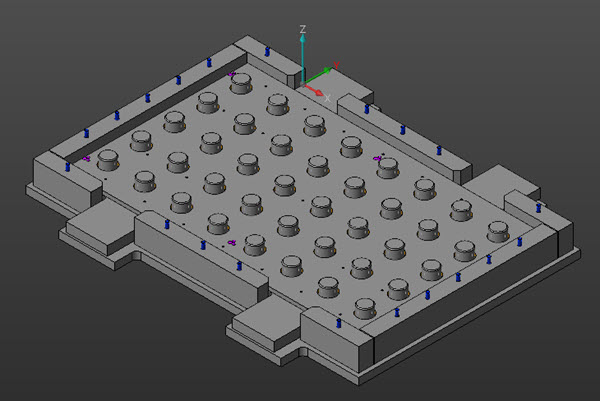
- H-plates templates refer to Mold Bases with a H-plate in it, as illustrated below:
- Currently the library contains 4 different H-Plate Mold Bases
- SMC Tool with H-plates and Cover Buildup
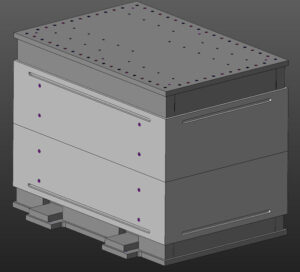
- Contains H-plate EJ Clamp plate, H-plate EJ Back plate, Pin plate, Ej rails, Ejector block, Cover block, Cover rails, and Cover Clamp plate
- Cover/Ejector Block have a default size of 70″ x 35″ x 25″ (all these dimensions are editable)
- Also includes additional cover/ejector rails that cover the ends of the tool
- SMC Tool with H-plate, full Ej Clamp Plate, and Cover Buildup
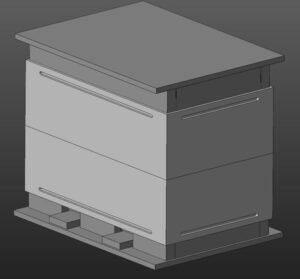
- Contains EJ Clamp plate, H-plate EJ Back plate, Pin plate, Ej rails, Ejector block, Cover block, Cover rails, and Cover Clamp plate
- Cover/Ejector Block have a default size of 70″ x 35″ x 25″ (all these dimensions are editable)
- Also includes additional cover/ejector rails that cover the ends of the tool
- SMC Tool with H-plate, full Ej Clamp Plate, and no Cover Buildup
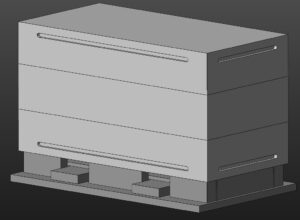
- Contains EJ Clamp plate, H-plate EJ Back plate, Pin plate, Ej rails, Ejector block, and Cover block,
- Cover/Ejector Block have a default size of 70″ x 35″ x 25″ (all these dimensions are editable)
- Also includes additional cover/ejector rails that cover the ends of the tool
- SMC Tool with Insulator Board
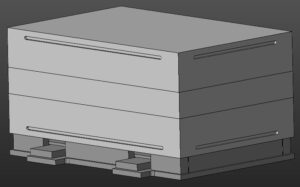
- SMC Tool with H-plates and no Cover Buildup
- Contains H-plate EJ Clamp plate, H-plate EJ Back plate, Pin plate, Ej rails, Ejector block, and Cover block
- Cover/Ejector Block have a default size of 70″ x 40″ x 25″ (all these dimensions are editable)
- Also includes additional cover/ejector rails that cover the ends of the tool
- SMC Tool with H-plates and Cover Buildup
- H-plates templates refer to Mold Bases with a H-plate in it, as illustrated below:
-
Template Specific Information
- Editing Tool Parameters
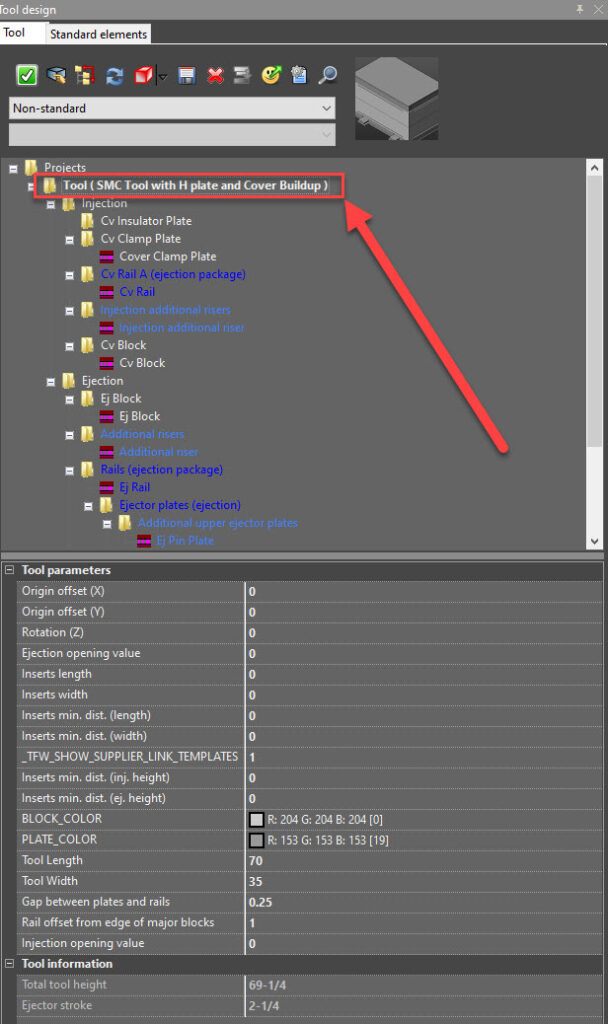
- Once the Mold Base template has been selected, click on the folder shown below to edit the Tool Parameters
- We can see the Tool Parameters section at the bottom of the new window
- These parameters include block color (Cover and Ej block color), plate color (everything besides the Cover & Ejector block), tool length and width, gap between rails and plates, rails offsets, and injection opening value
- Also, in the tool information section, we can see the overall tool height and the ejector stroke
- These values update automatically when adjusting plate, block, and rail sizes
- Also, in the tool information section, we can see the overall tool height and the ejector stroke
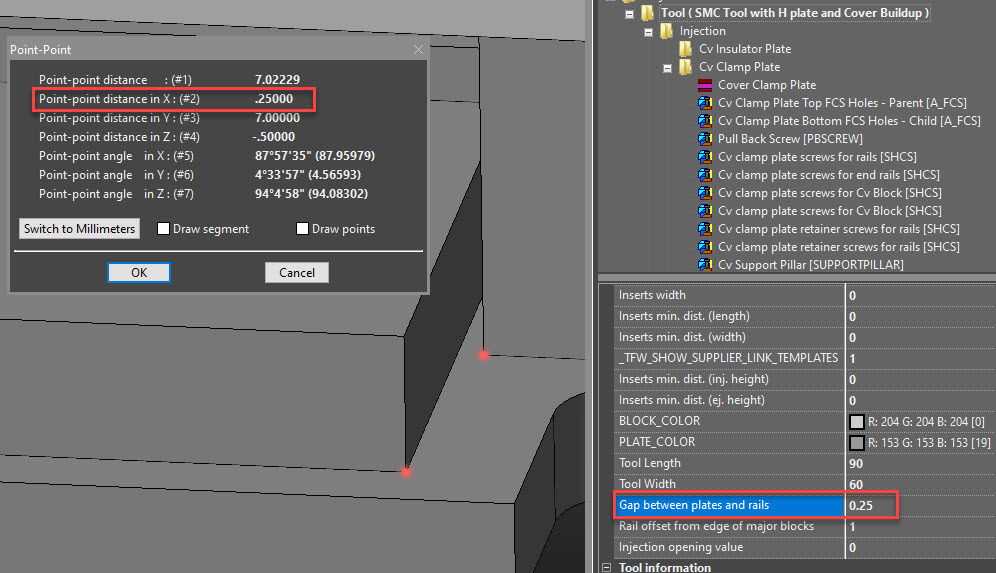
- The gap between rails and plates parameter refers to the amount of space between a rail and a plate, as shown below
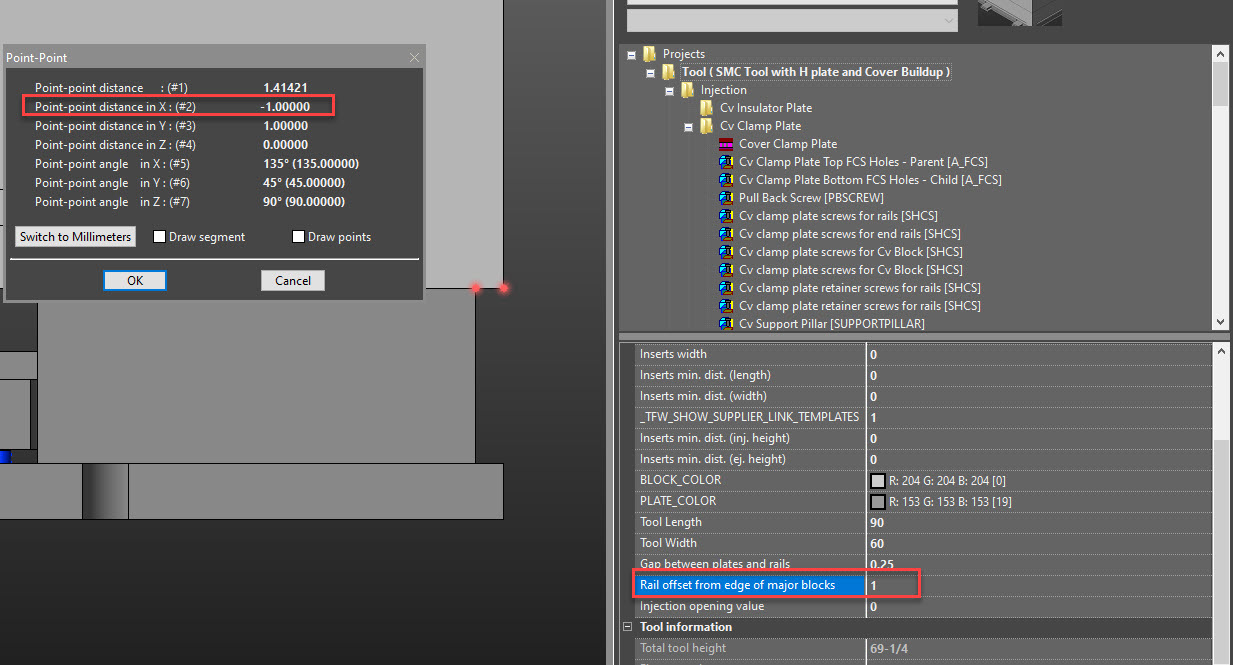
- The rail offset parameter refers to the amount of space the rails are inset from the edge of the Cover & Ejector blocks
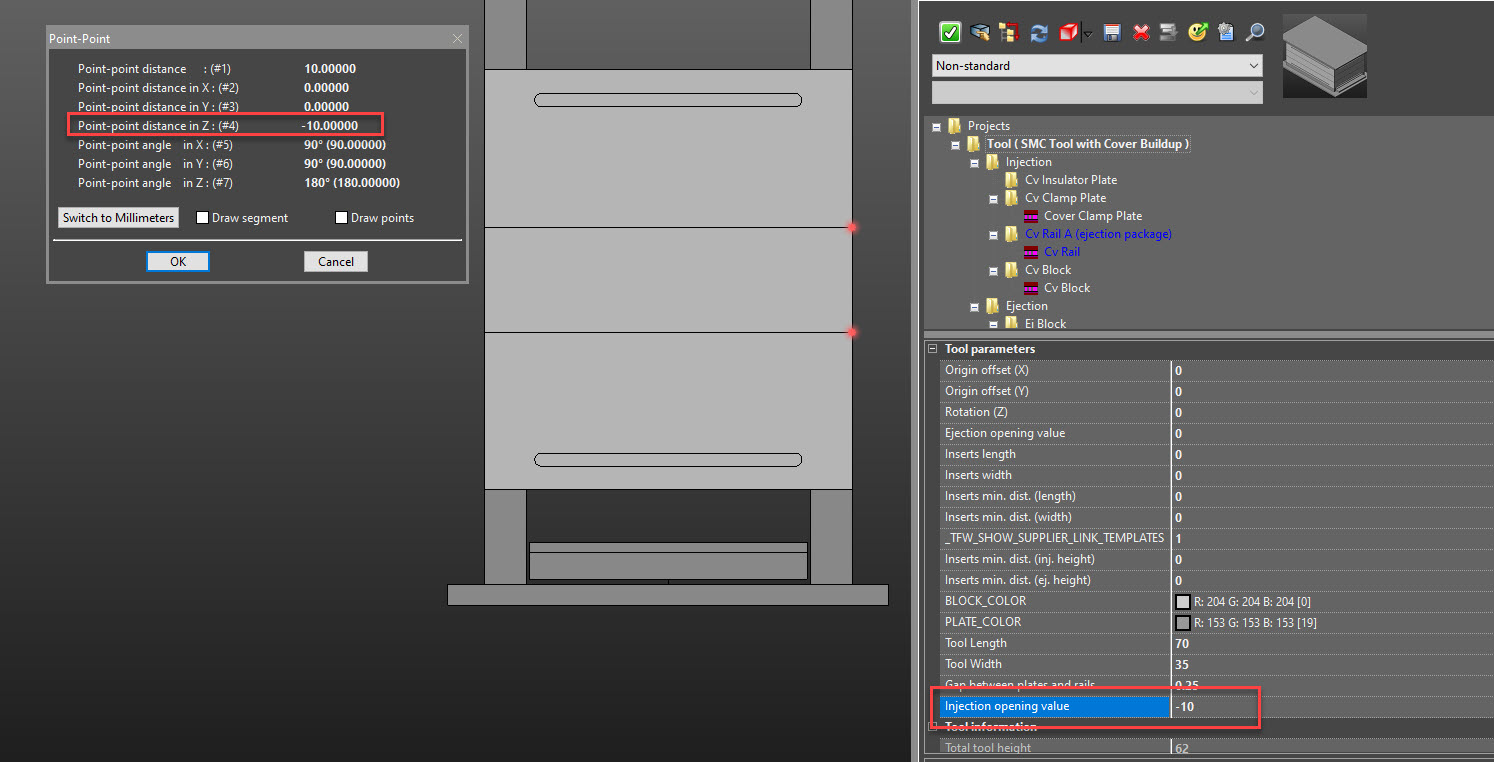
- The injection opening value overlaps the cover block with the ejector block
- If you put in a value of -10.0″, the cover block and all the pertaining plates and rails for the cover build up will be shifted down -10.0″ as illustrated below
- If you put in a value of -10.0″, the cover block and all the pertaining plates and rails for the cover build up will be shifted down -10.0″ as illustrated below
- These parameters include block color (Cover and Ej block color), plate color (everything besides the Cover & Ejector block), tool length and width, gap between rails and plates, rails offsets, and injection opening value
- Once the Mold Base template has been selected, click on the folder shown below to edit the Tool Parameters
- Editing H-Plates
- Editing the H-plates can happen in 2 different locations, depending on what template you are using
- Templates that include H-Plates for both the Ej Clamp Plate and Ej Back Plate
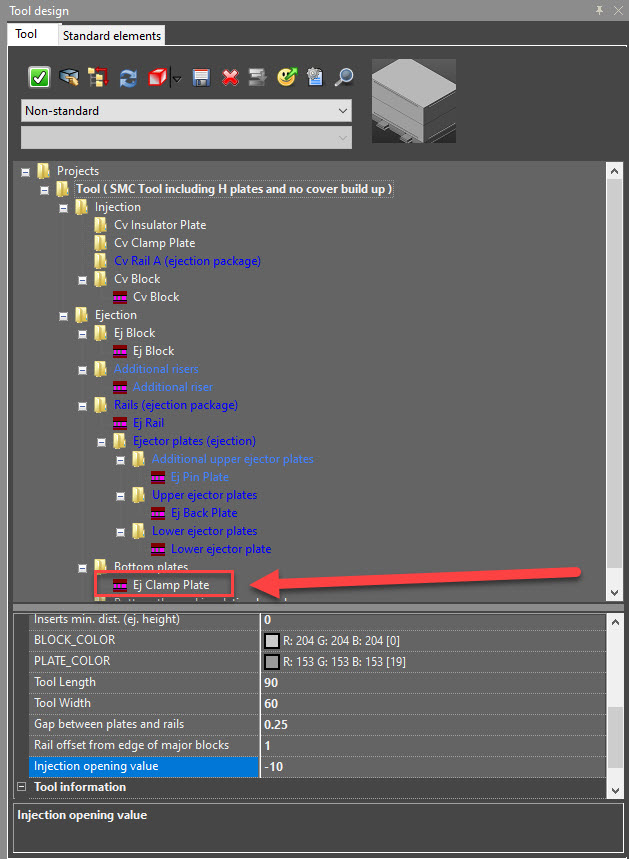
- Navigate to the Ej Clamp Plate in the Tool Design Window
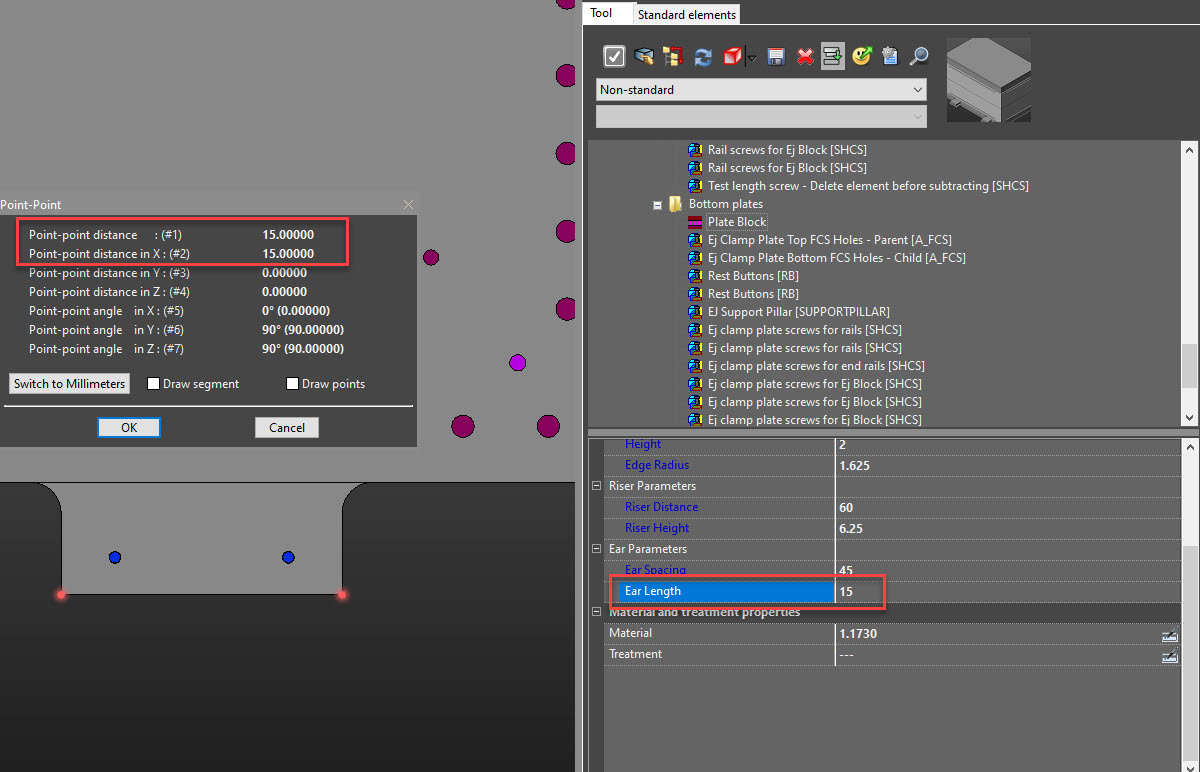
- Once you have selected that plate, you will get values for the Ej Clamp Plate parameters. These values will allow you to edit the ear length, ear spacing, and corner radius of the plate
- Adjusting the ear length and ear spacing on the Ej Clamp Plate will also adjust the same parameters on the Ej Back Plate.
- The ear spacing is setup so its the same between the Ej Clamp plate and Ej Back plate
- The ear length of the Ej Back plate is setup to be 3/4 of the ear length of the Ej Clamp plate
- This can be changed in the Ej Back plate parameters if you need a different value
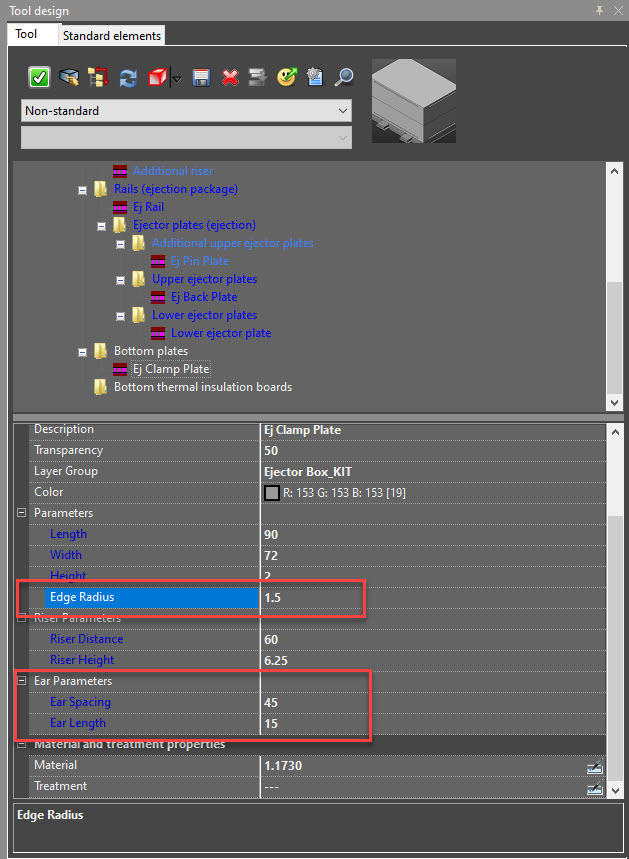
- Adjusting the ear length and ear spacing on the Ej Clamp Plate will also adjust the same parameters on the Ej Back Plate.
- The templates that contain 2 H-plates
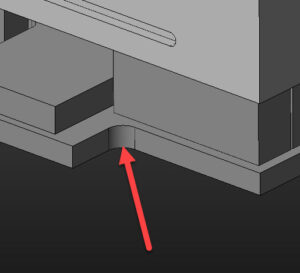
- Edge radius refers to the radius where the plate and the ears meet as shown below
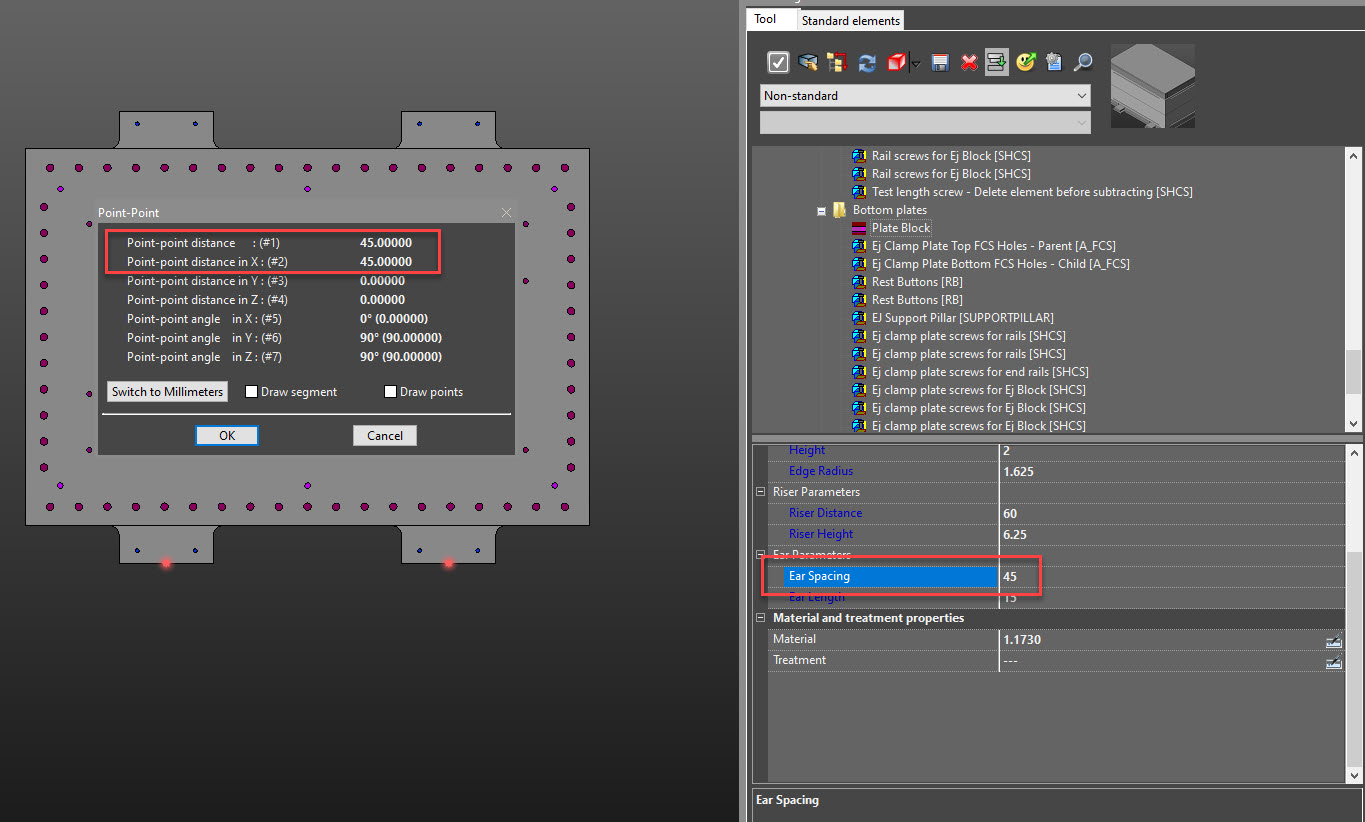
- Ear spacing refers to the spacing from the center point of one ear to the center point of the other ear
- Ear length refers to the length of the ears on the H-Plate
- Navigate to the Ej Clamp Plate in the Tool Design Window
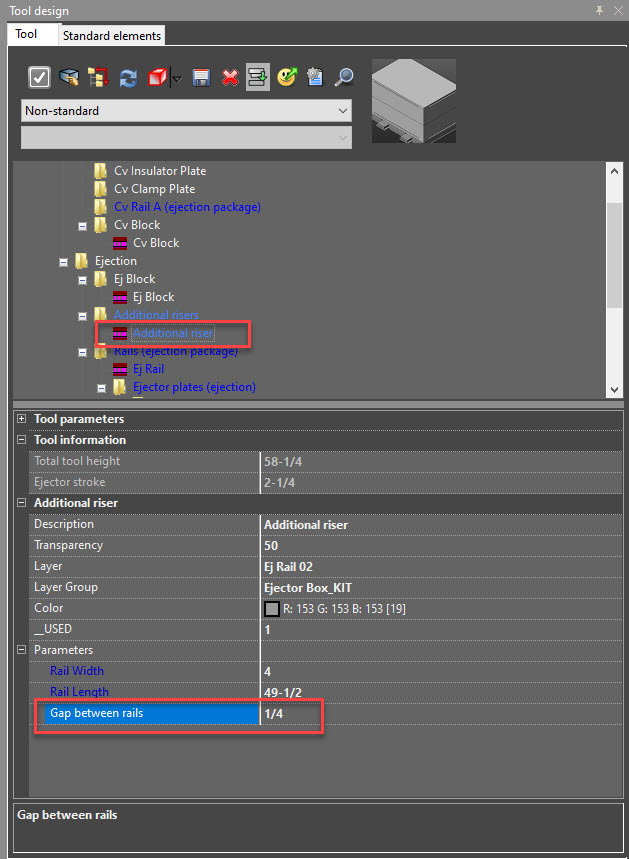
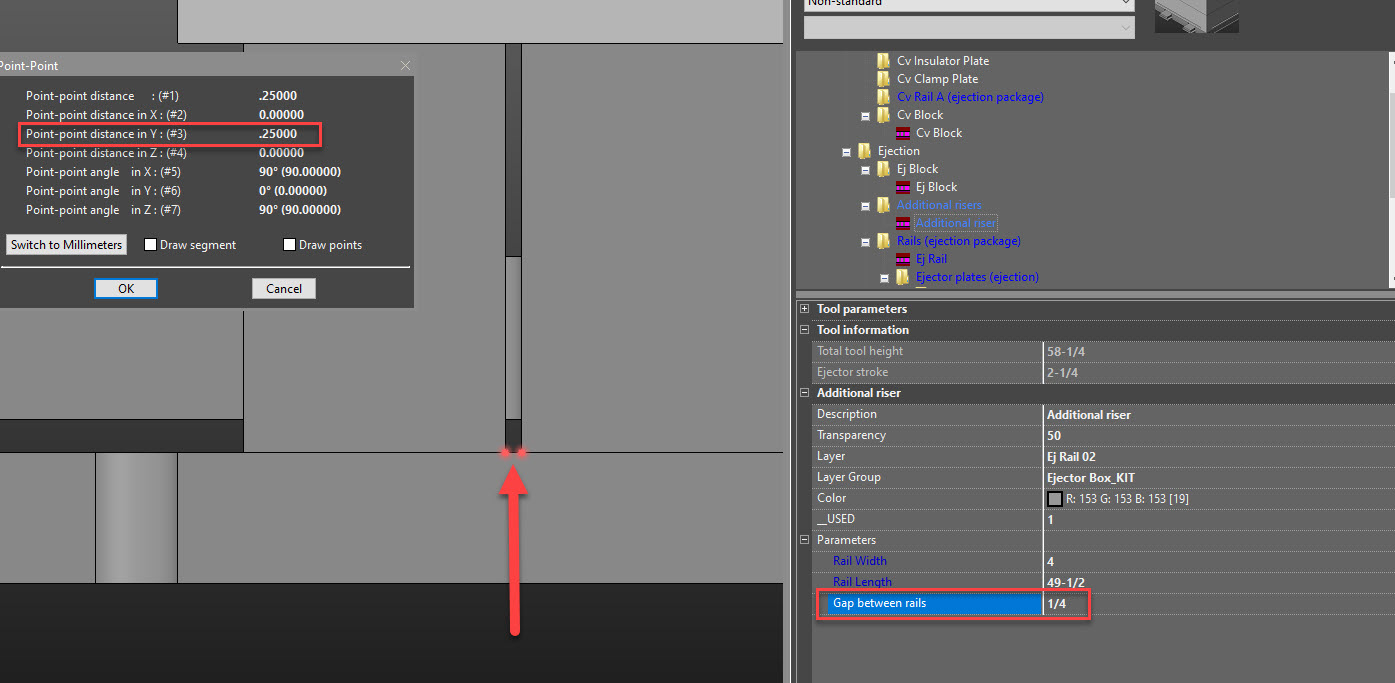
- With the H-plate mold bases, you can also adjust the gap between the risers by navigating to the Additional Riser in the folder tree and selecting it
- We can see in the parameters section that there is a field called “Gap between rails.” Adjusting this increases the distance between the rails
- We can also turn off these additional risers if they are not needed in your design
- Navigate to the “_USED” field, and change it from a “1” to a “0”
- Doing so will cause the additional risers to not build
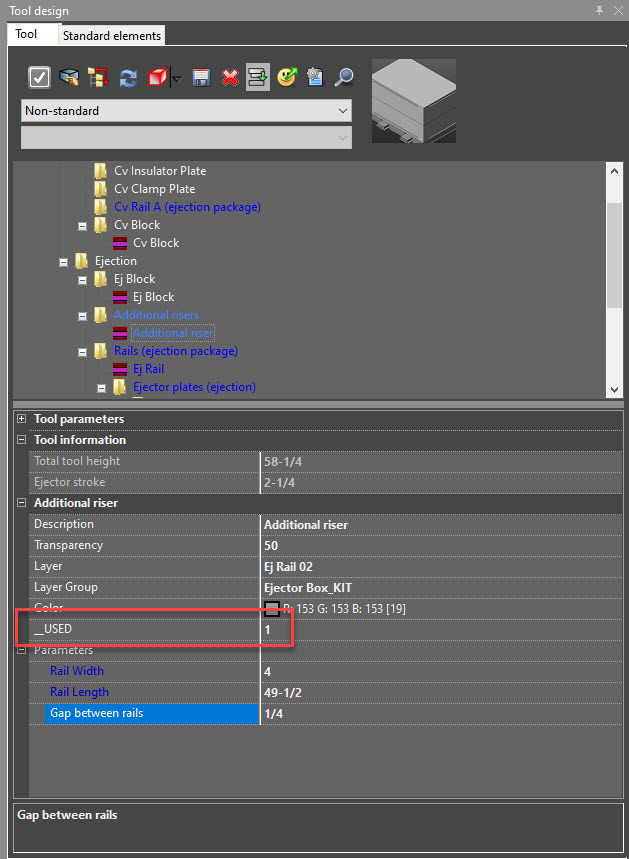
- Navigate to the “_USED” field, and change it from a “1” to a “0”
- We can also change the parameters of the Ej Back plate by navigating to it in the Tool Design Tree and selecting it
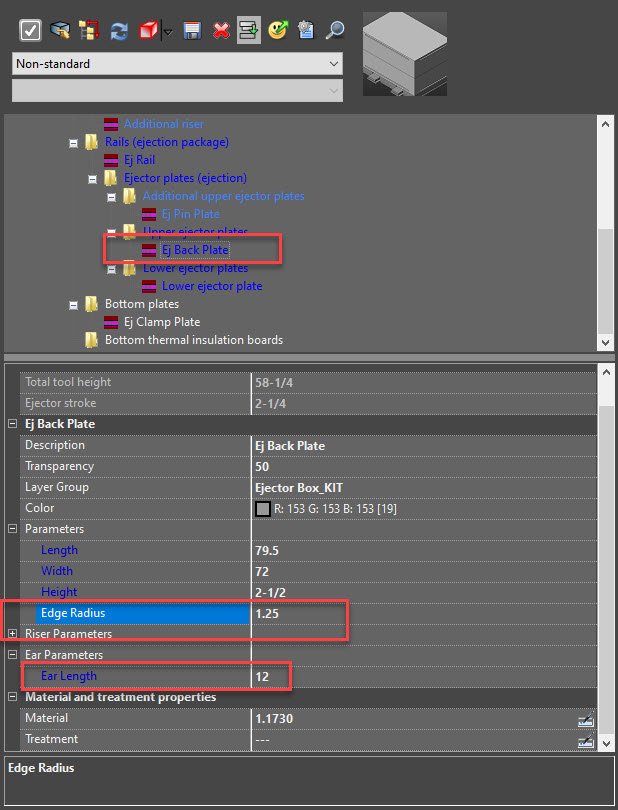
- We have the ear length parameter, just like the Ej Clamp plate, but the ear spacing parameter is hid and can only be changed on the Ej Clamp plate parameters
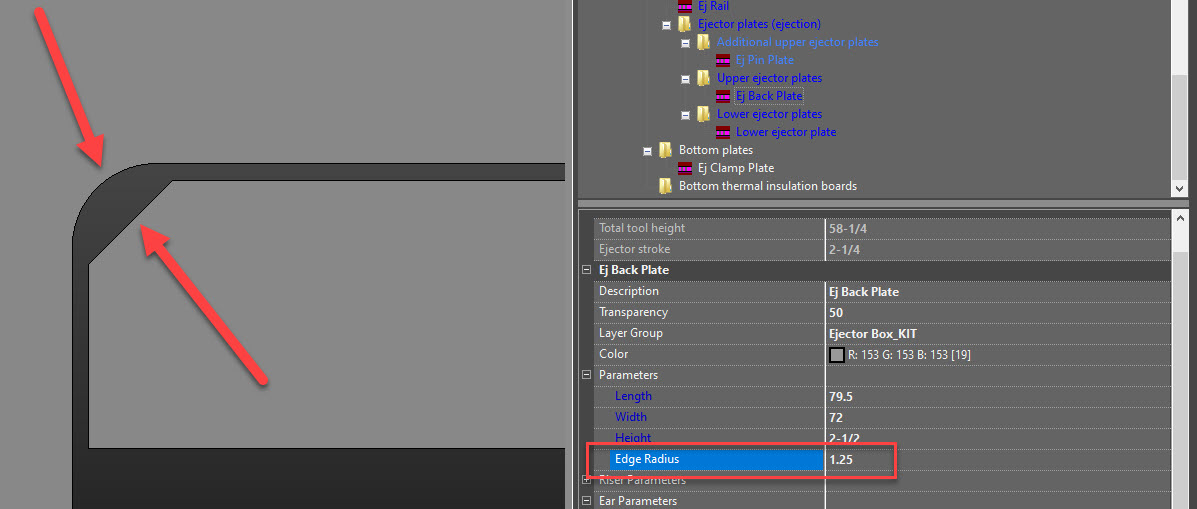
- There is also an edge radius parameter. Changing this will modify the radius where the ear meets the plate
- It will also modify the chamfer on the inside of the rails, as shown below
- It will also modify the chamfer on the inside of the rails, as shown below
- Templates that include H-Plates for both the Ej Clamp Plate and Ej Back Plate
- Templates that include one H-Plate for Ej Back Plate
- Navigate to the Ej Back plate in the Tool Design Window
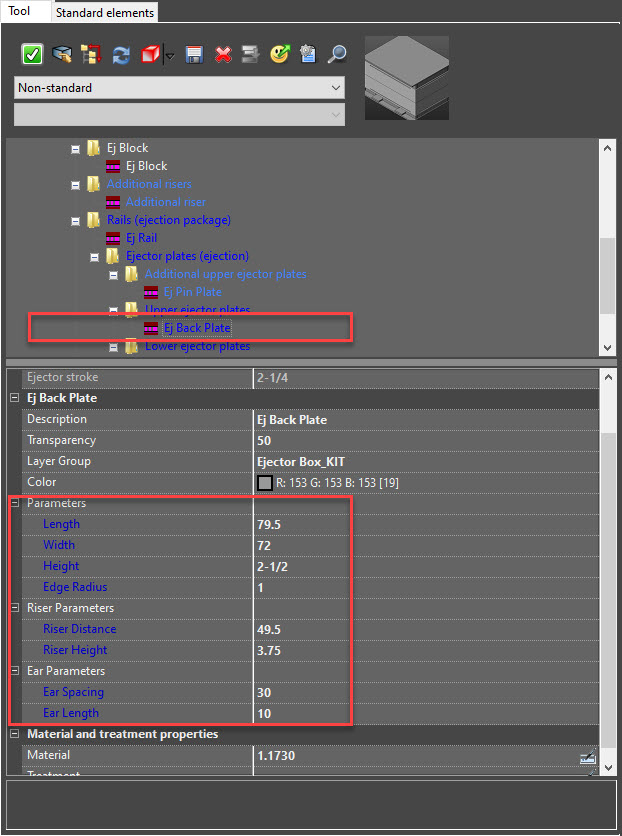
- The parameters for the H-plates have been discussed in the section above, but all the H-plate edits for these templates (minus the riser gap) will be done in the form shown below
- The Ej Back Plate now has the edge radius, ear spacing, and ear length parameters. These can all be edited in this form
- The parameters for the H-plates have been discussed in the section above, but all the H-plate edits for these templates (minus the riser gap) will be done in the form shown below
- Navigate to the Ej Back plate in the Tool Design Window
- Editing the H-plates can happen in 2 different locations, depending on what template you are using
- Editing Tool Parameters
-
Additional Information
-
- Mold Base – How to Guide
- Contains more information regarding standard plates templates
- Mold Base Standard Plate Templates
- Contains more information regarding standard plates templates
- Mold Base Standard Elements
- Contains more information regarding Standard Elements
- Mold Base – How to Guide