
Mold Bases – How to Guide
-
Overview
- Mold bases are a tool located in VISI for create templates of tools. These templates come in with the Cover and Ejector blocks, along with the necessary rails and plates needed. You can adjust block, plate, and rail sizes on the fly with this tool. It also holds templates for adding in standard elements into these mold bases. The purpose of these templates is to ultimately streamline and standardize the mold building process.
-
Getting Started
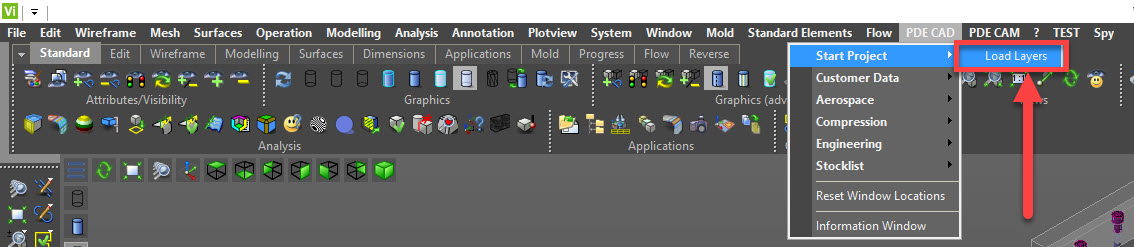
- Load the Layer Template first, located in the PDE CAD tab at the top of the screen. Select the “Start Project”, and then the “Load Layers” option
- Doing this will allow the everything generated by the Mold Base to be placed on the proper layers
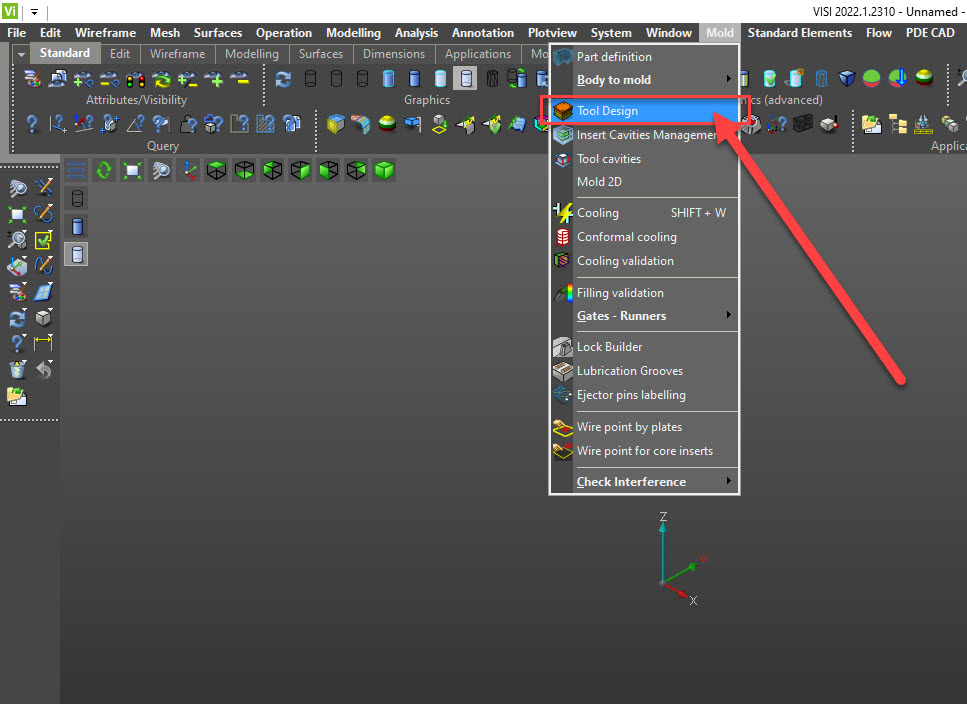
- Navigate to the “Mold” tab at the top of the screen and select the “Tool Design” option shown below
- A new window will appear on the right side of the screen called “Tool Design”
- In this window, there is a picture in the top right corner. When you click this picture, this creates a drop down with different mold base templates
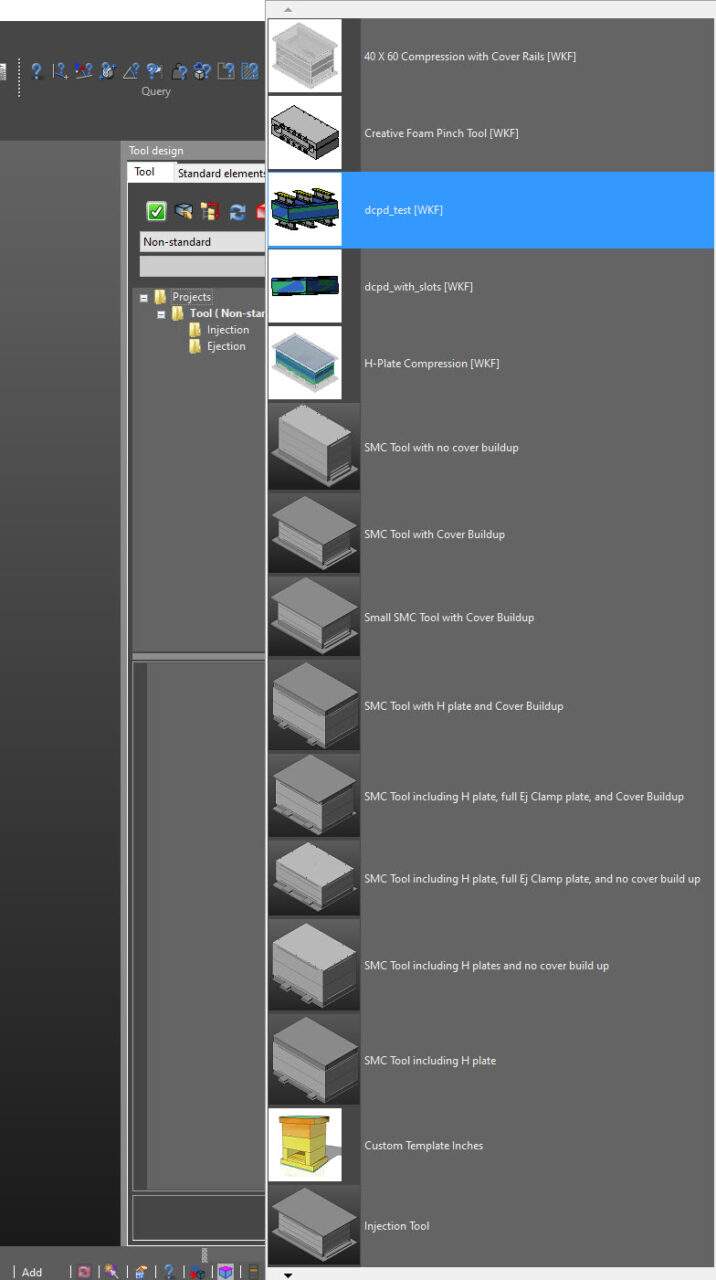
- Clicking on one of these templates will start the building of the Mold Base
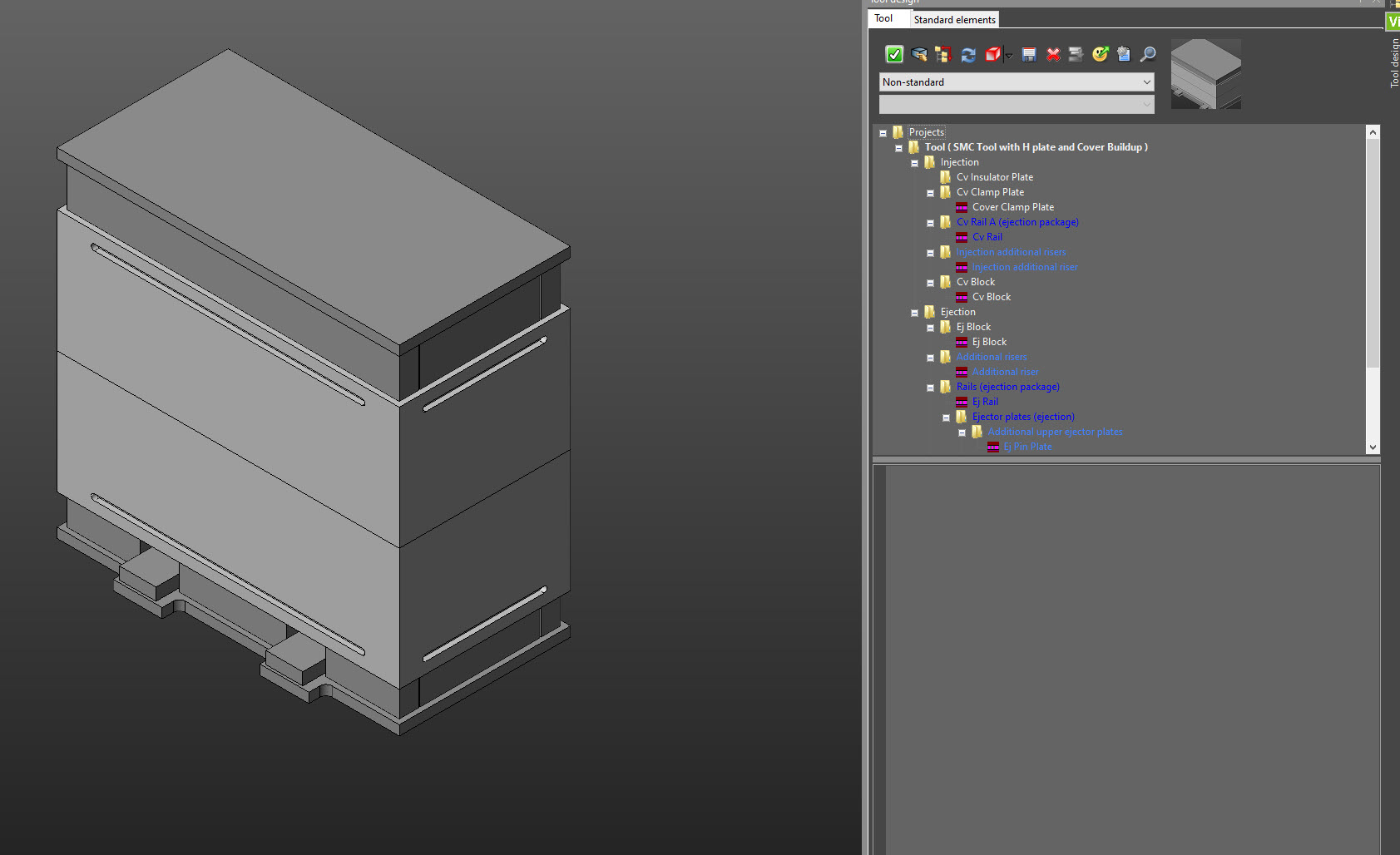
- Clicking on the outlined folder below brings up options for the tool
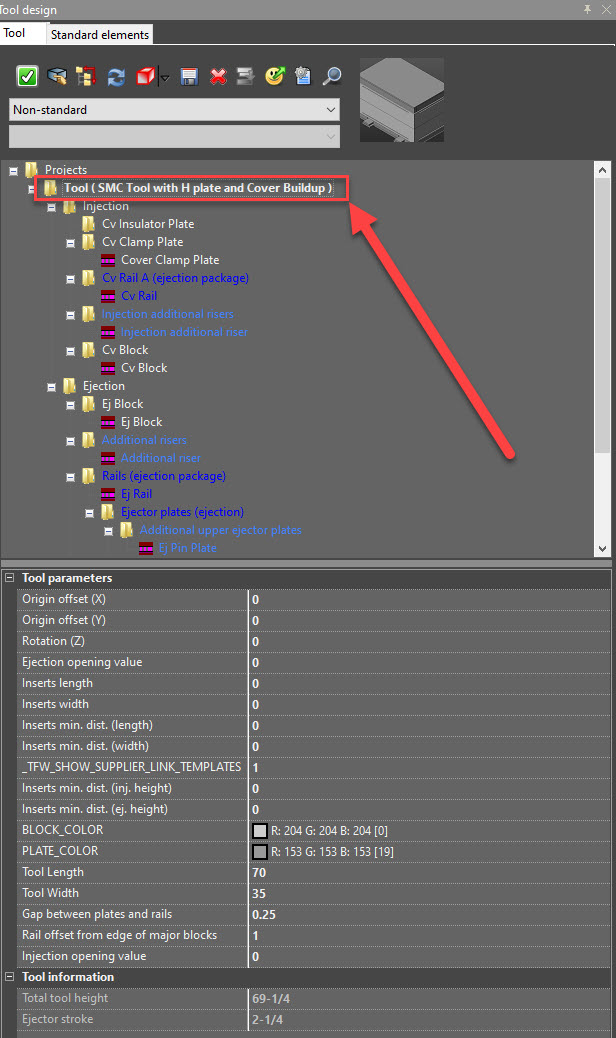
- Here you can edit the color of the plates and main blocks, tool length & width, gap between the rails and plates, rail offset from the edge of the major blocks, and Injection Opening Value
- If you select a plate or cover/ejector block, you get options specific to that block. The selected piece also highlights red in the window when selected
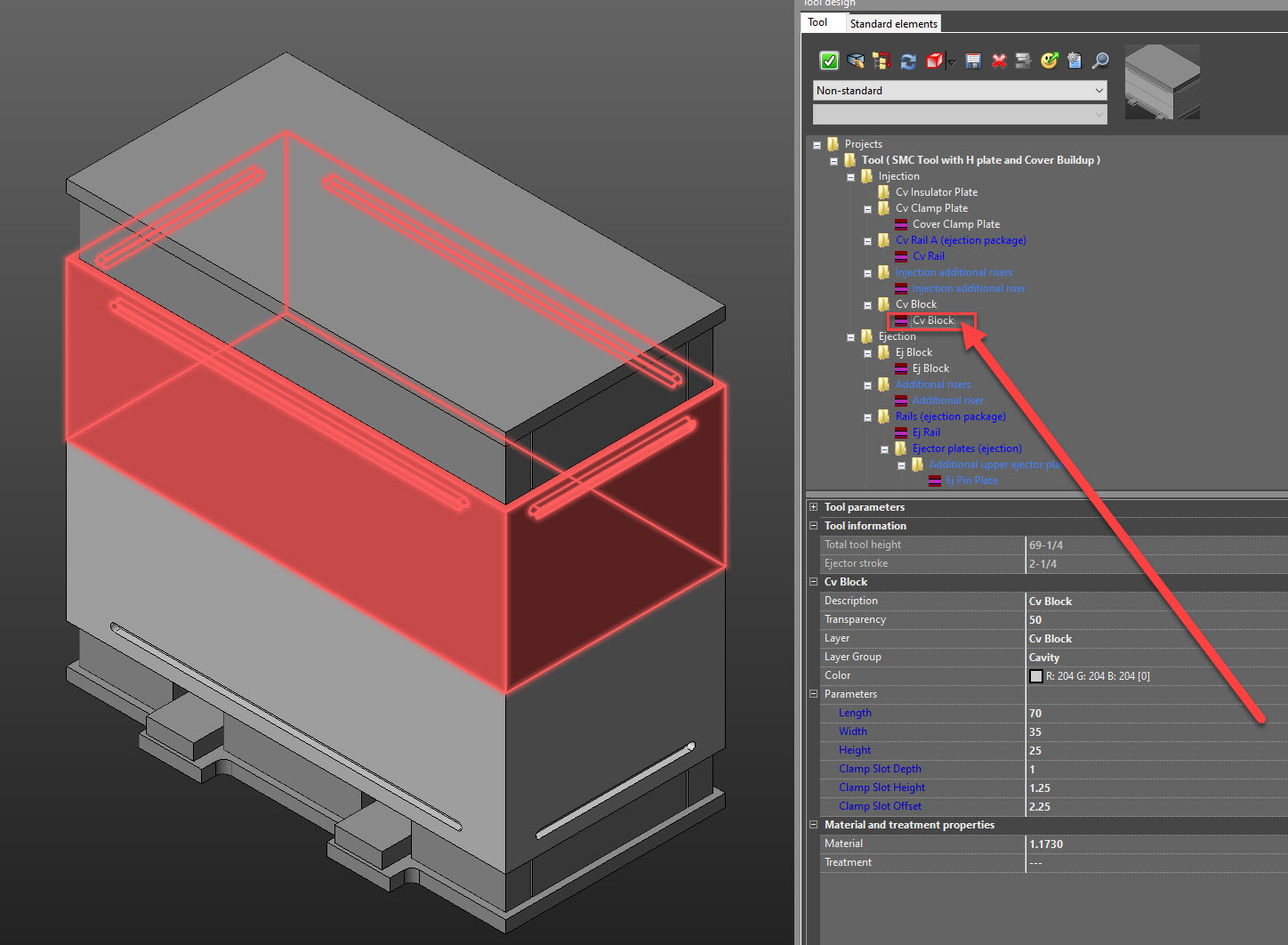
- Here we can see the length, Width, and Height of the block. These are all editable fields. There’s also options for the clamp slots in the block, that are also editable
- Once you have gotten everything laid out correctly, we can use this template to add in standard elements by clicking on the “Standard Elements” Tab at the top
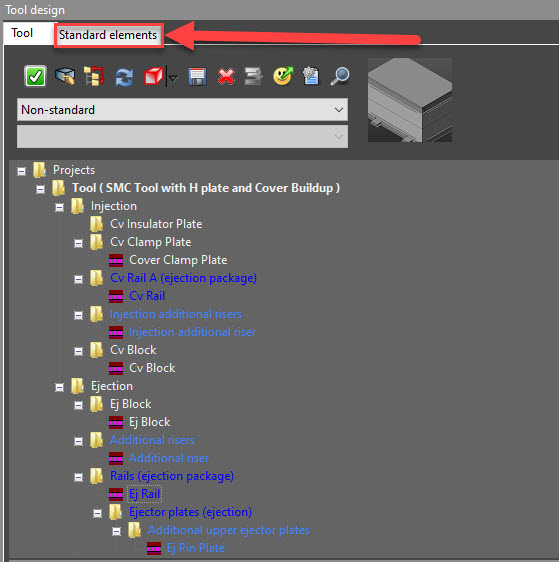
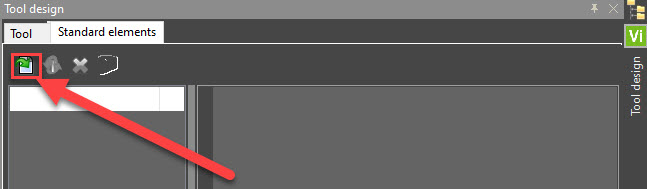
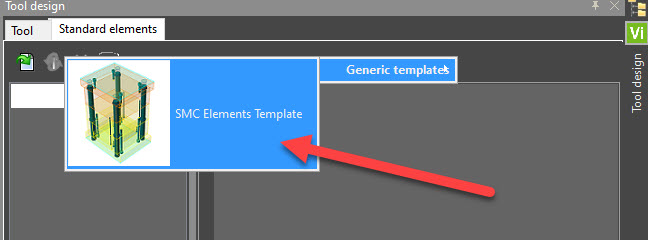
- Clicking this tab brings up a new menu. In this new menu, there is an button (shown below) on the left hand side that loads standard elements template. Clicking this button brings up the available standard element template
- Below we can see the Standard Element Template. Selecting this template will start building the standard elements into the mold base
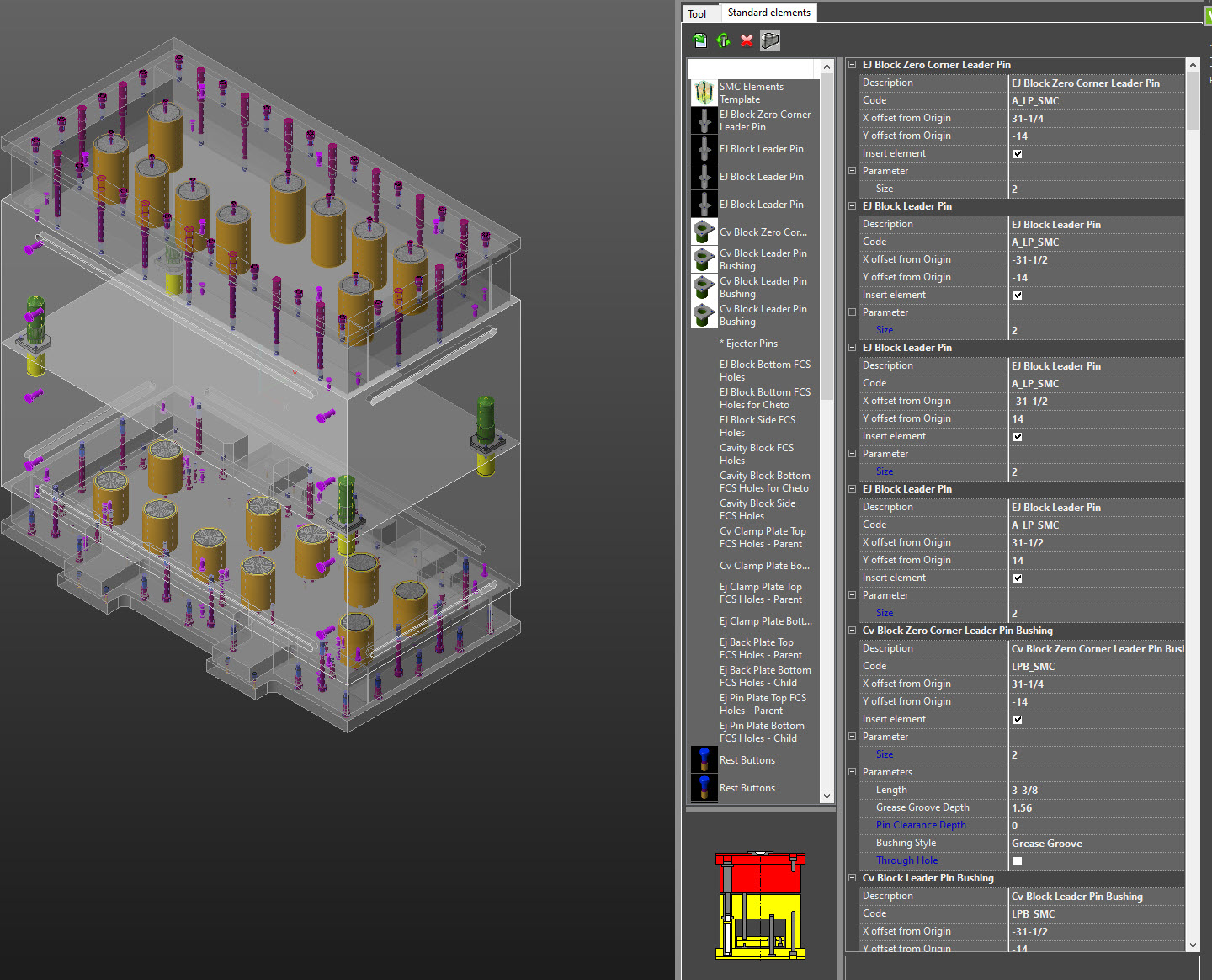
- Once the standard elements are done building, your screen should look something like shown below
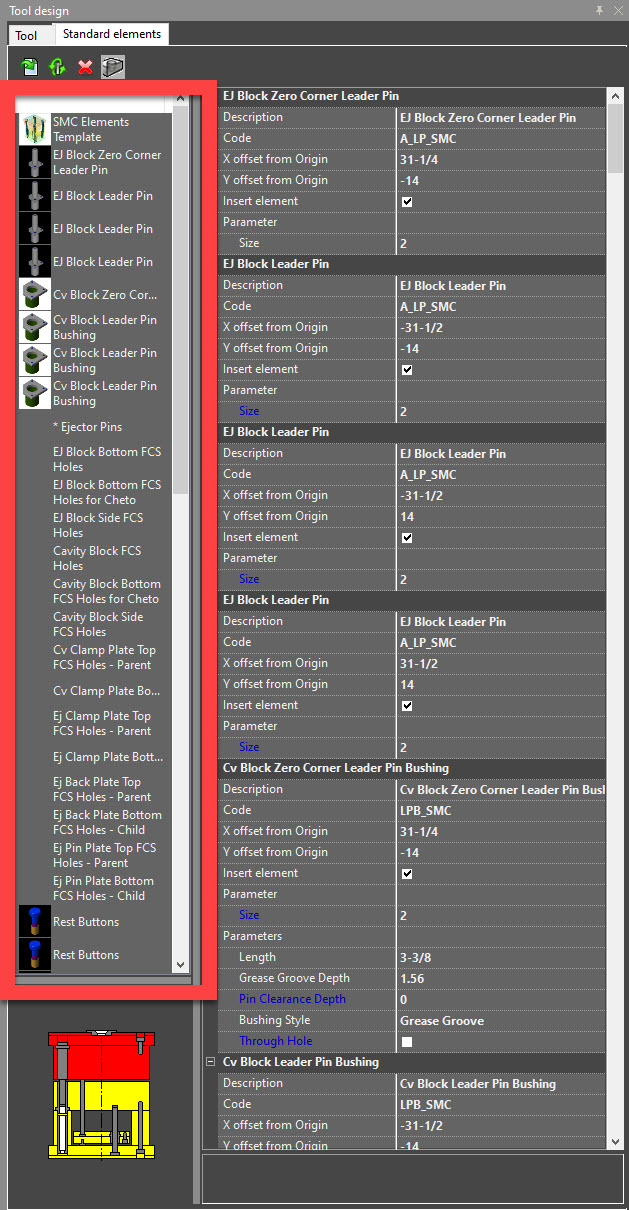
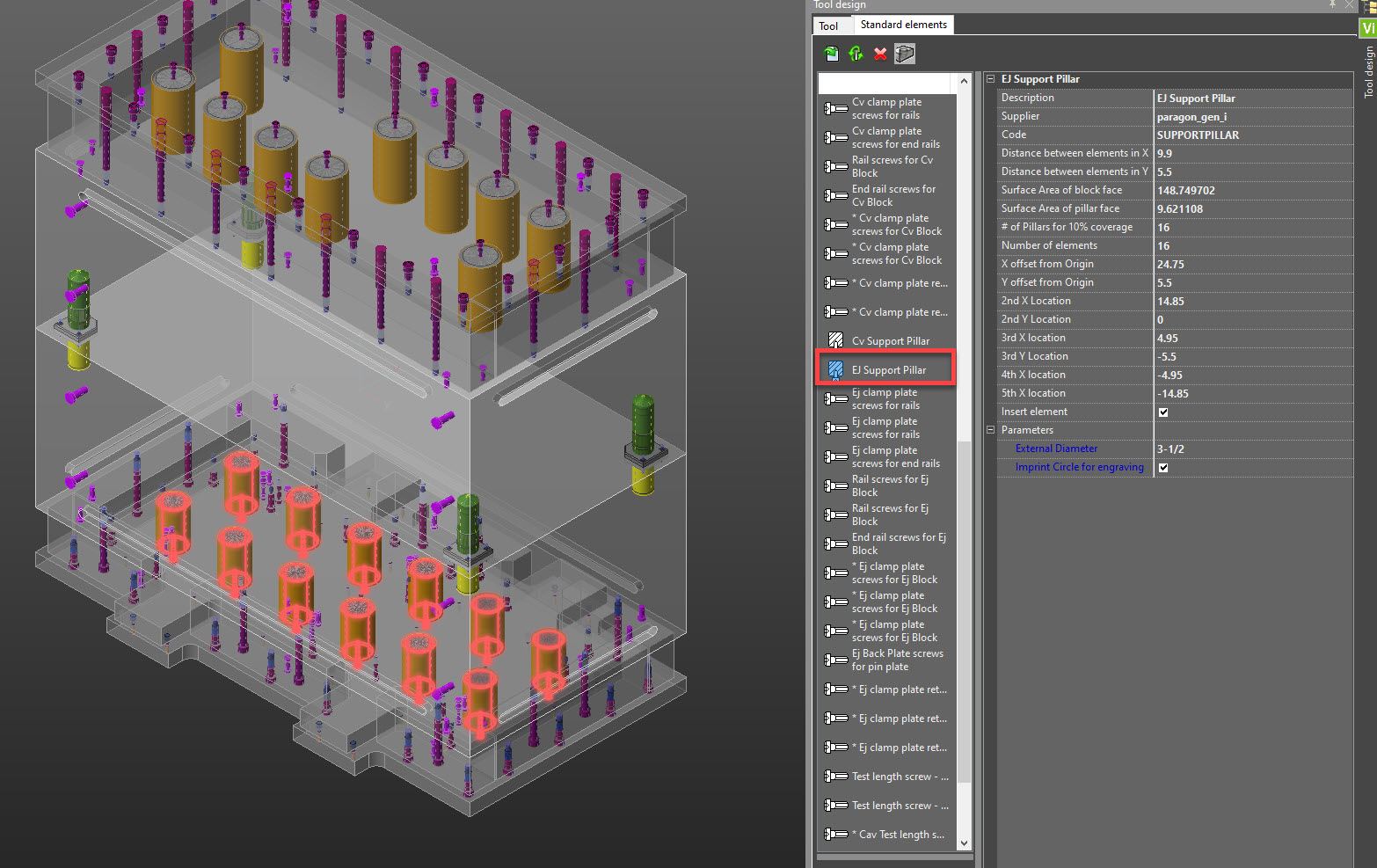
- We can see the standard elements have been built and are in the Mold Base currently. On the right had side we can see each individual instance of the standard elements. You can scroll through the standard elements list and select any of them to edit
- Any of these standard elements are editable, just like using the builders. When you select it, it will highlight red. Also, the right panel will show the available options for that standard element (i.e. diameter, length, width, etc.). Editing these will update the attributes for the standard element.
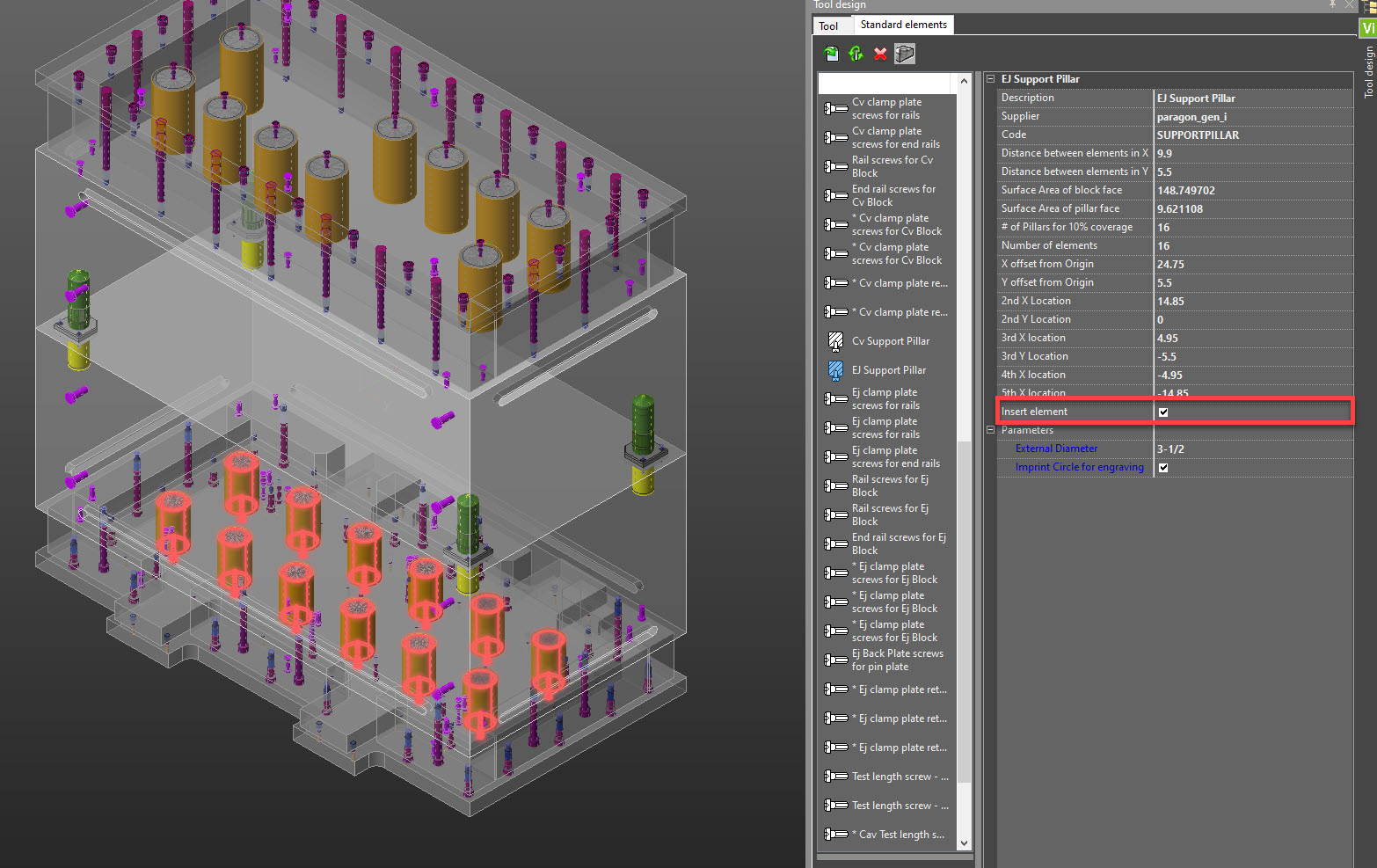
- You can choose to not include a specific standard element by unchecking the “Insert Element” check box shown below. Unchecking this will cause the standard element to not build
- If at anytime you need to edit any of the blocks or plates, you can click the “Tool” tab at the top of the Tool Design panel. This will take you back to the panel with all the options for each plate, rail, and block. Editing any of the parameters for these pieces will cause the Standard Elements in the tool to automatically rebuild.
- Be warned, this will take a couple minutes because each standard element needs to rebuild. It is best to make sure you have all the correct lengths, widths, and thicknesses set before adding the standard elements.
- You can turn the feature off that automatically rebuilds standard elements if you want. The button is shown below
- You can turn the feature off that automatically rebuilds standard elements if you want. The button is shown below
- There is an option to delete all the standard elements if you need to start over, which is shown below. This will remove all the standard elements in the mold base.
- Be warned, this will take a couple minutes because each standard element needs to rebuild. It is best to make sure you have all the correct lengths, widths, and thicknesses set before adding the standard elements.
- Load the Layer Template first, located in the PDE CAD tab at the top of the screen. Select the “Start Project”, and then the “Load Layers” option
-
Additional Information
- Mold Base Standard Plate Templates
- Contains more information regarding standard plates templates
- Mold Base H-Plate Templates
- Contains more information regarding H-plate plates templates
- Mold Base Standard Elements
- Contains more information regarding Standard Elements
- Mold Base Standard Plate Templates